Your ShieldHub Digital Badge puts your ShieldID, your current ShieldScore, and your expiration date right on your phone, with a QR code anyone can scan to verify it on the spot. This article walks you through why you have a badge, how to install it, how it stays up to date, and what to do if something goes wrong.
Why do I have a Digital Badge?
You have a Digital Badge because one or more Network Owners enabled badging on your account. Badging requirements are set by networking companies, not by ShieldHub. When a company you're connected to turns on Digital Badging, or the moment you accept a network invite into a company that already uses it, badging is activated for you and the "Add to Wallet" buttons appear.
If you don't see the buttons described below, no connected company has enabled badging for your account yet. If you believe you should have access to your ShieldScore badge and still can't find it, contact ShieldHub Support.
Where to find the "Add to Wallet" buttons
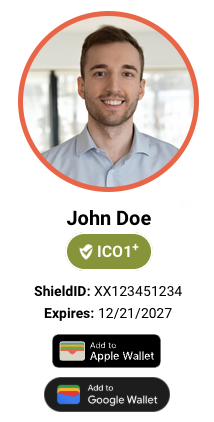
The Add to Apple Wallet and Add to Google Wallet buttons appear in two places once badging is enabled for you: •
- Your Profile: in your personal profile card.
- The "My Information" panel: shown next to your Invitations, below your photo, name, ShieldScore, ShieldID, and expiration date.
Tip: The badge installs onto a phone. If you're on a desktop or laptop, use the Text Me My Badge option instead (covered below) to send a link to your phone.Before you start: profile photo requirement
Your badge is built using your profile photo, so a profile photo with a clearly visible human face is required before a badge can be created. If your photo is missing or doesn't show a person, badge creation is blocked and you'll see one of these messages:
- Before you can add your ShieldHub Badge you must upload a profile picture of a person."
- "Before you can add your ShieldHub Badge your profile picture must be of a person."
How to fix it: Go to your Profile, click the pencil/edit button on your profile photo, and upload a clear, front-facing photo of yourself. If you're using the badge pop-up (splash) prompt, you can upload the photo right there and continue without leaving the screen.
Step-by-step: installing your badge
ShieldScore Badges install the same way as any other Apple or Android badge. If you've never installed one before, the system will walk you through a simple step-be-step process.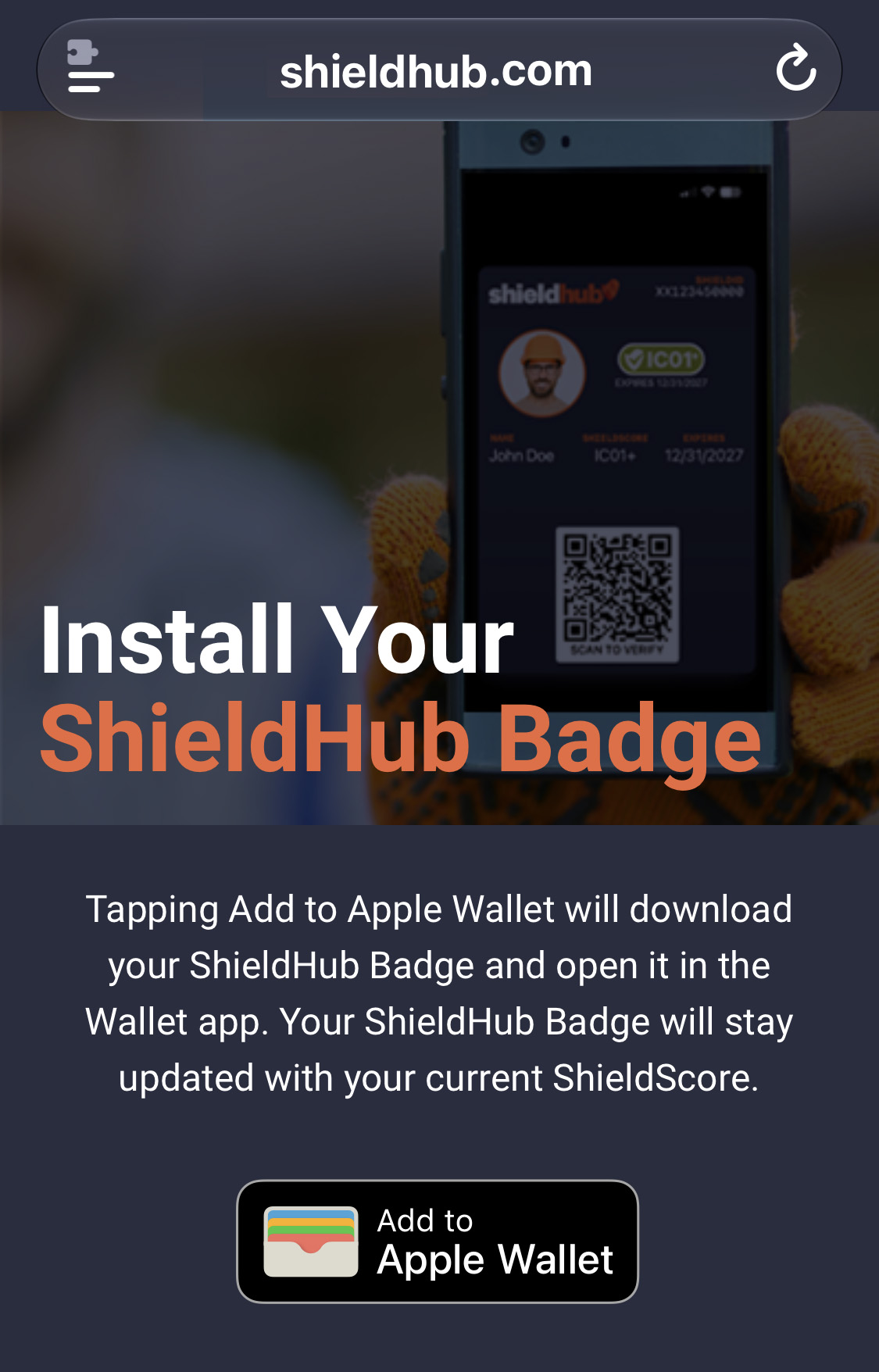
- On your phone, open your ShieldHub Profile or the My Information panel next to your Invitations.
- Make sure your profile photo is set and shows your face.
- Tap Add to Apple Wallet (on an iPhone/iPad) or Add to Google Wallet(on an Android phone).
- Apple: Your badge downloads as a Wallet pass and opens in the Apple Wallet app.
Tap Add to save it. - Google: A "Save to Google Wallet" page opens in a new tab.
Tap Save to add it to Google Wallet.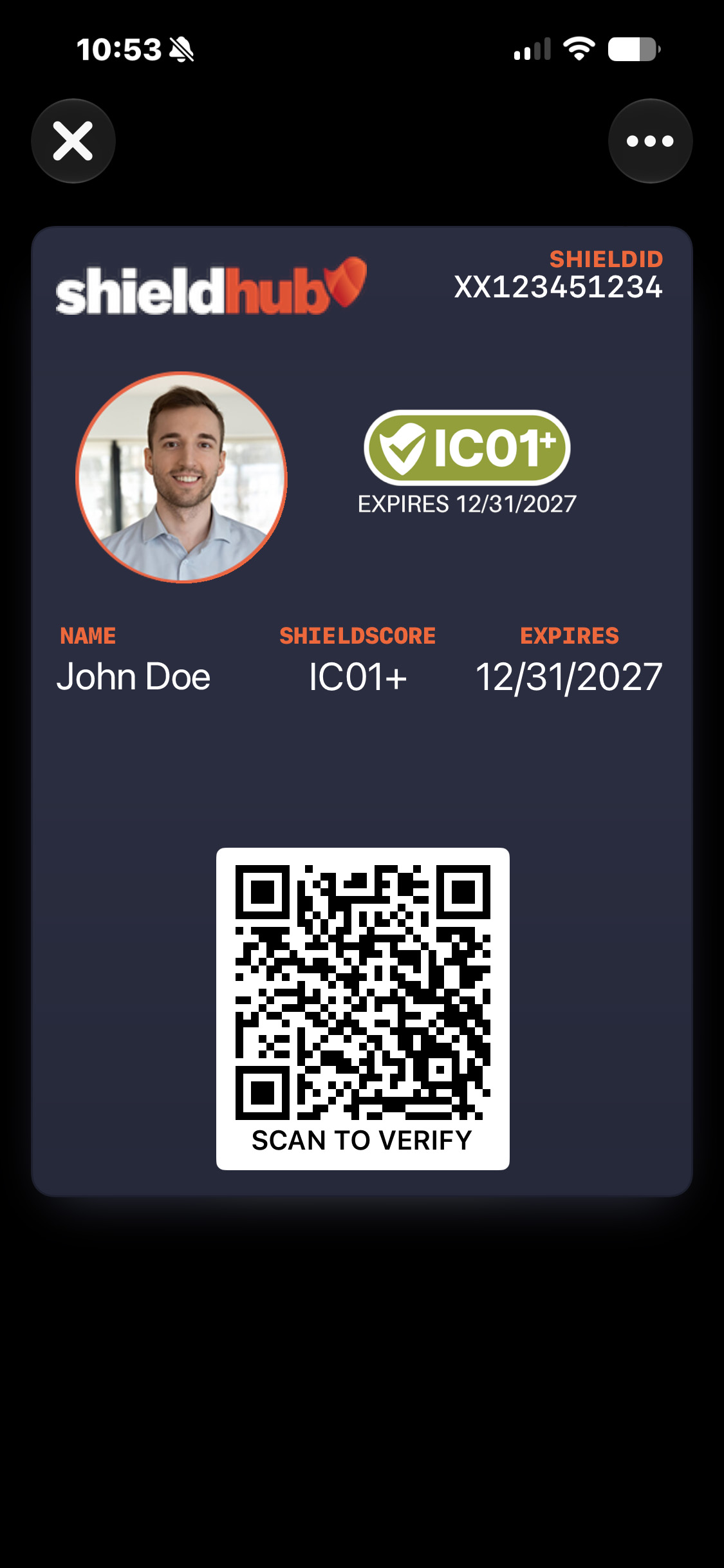
- Apple: Your badge downloads as a Wallet pass and opens in the Apple Wallet app.
- Your badge is now on your phone, showing your name, ShieldID, current ShieldScore, expiration date, and a QR code for verification.
Not on your phone right now?
- Use "Text Me My Badge". If you're on a desktop, or just want the badge on your phone, choose Text Me My Badge. ShieldHub sends an SMS with a secure link to the mobile number on your account.
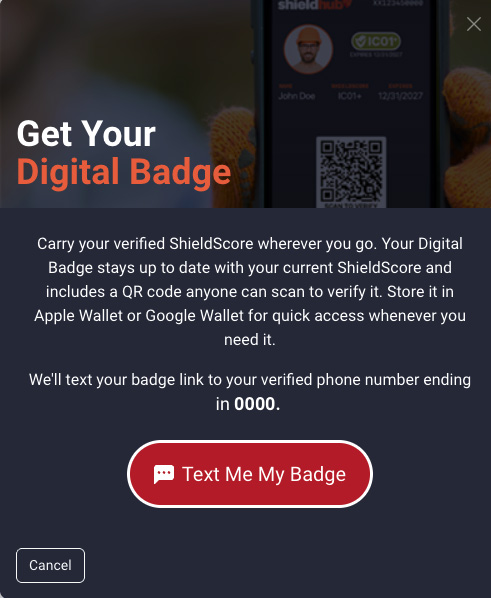
- Open that link on your phone and tap the wallet button to install. (You'll need a valid mobile number on file for this to work.)Your badge stays up to date automatically
Your Digital Badge is a live pass, not a static picture. It carries your current ShieldScore and expiration date, and it's kept current through its expiration date. Any ShieldScore change you accept updates your badge automatically.
A couple of notes:
- Updates apply to badges that are already installed.
- On Apple, the update appears after your device next checks in with Wallet, so it may take a short time to refresh.
- On Google, the badge is updated on the server side.
Troubleshooting and limitations
- "Your Digital Badge is already installed on another device."
A badge can be active on one device at a time. To move it to a new phone, first tap Remove Badge on the device prompt. This removes the existing badge (allow about 30 seconds for it to clear), then you can install it on the new device. - "You must upload a profile picture of a person."
Your badge needs a profile photo with a visible face. Upload a clear, front-facing photo of yourself from your Profile, then try again. - The buttons aren't showing at all.
Badging hasn't been enabled for your account. The buttons stay hidden until a connected company (Network Owner) turns on Digital Badging for you. - "The badge share link has expired."
Text-Me-My-Badge links are time-limited for security. Request a new link using Text Me My Badge and open it promptly on your phone. - "We are unable to detect your mobile device."
A wallet pass can only be generated on a supported phone. Open ShieldHub on an iPhone/iPad or Android phone, or use Text Me My Badge to send the link to your phone. - My Apple badge didn't update right away.
Apple refreshes passes when your device checks in with Wallet, so score updates, badge removals, and messages may take a little time to appear.
Was this article helpful?
That’s Great!
Thank you for your feedback
Sorry! We couldn't be helpful
Thank you for your feedback
Feedback sent
We appreciate your effort and will try to fix the article