There may be times when you chose to opt-in or out of ShieldHub Communications. The following communications can be managed including:
- ShieldHub Marketing Emails - These include product announcements and special offers to ShieldHub clients.
- ShieldHub Network Invites - Disable this option if you no longer wish to receive Network invites. Disabling this option may prevent you from receiving important client communications.
- ShieldID Renewal Reminders - These reminders start about six weeks before the expiration of your current ShieldID, but stop once a purchase has been made. Renewal reminders are great way to ensure that you don't let your ShieldID lapse before the end of the subscription period.
- ShieldHub Minimal Required Emails - These email messages are security and utility emails. Login verification emails are included in this type of emails. Disabling these emails may affect your ability to login.
The eMail Preferences Center
You can adjust your communications preferences by going to the ShieldHub eMail Preferences Center.
- ShieldHub eMail Preferences at: https://portal.shieldhub.com/emailpreferences
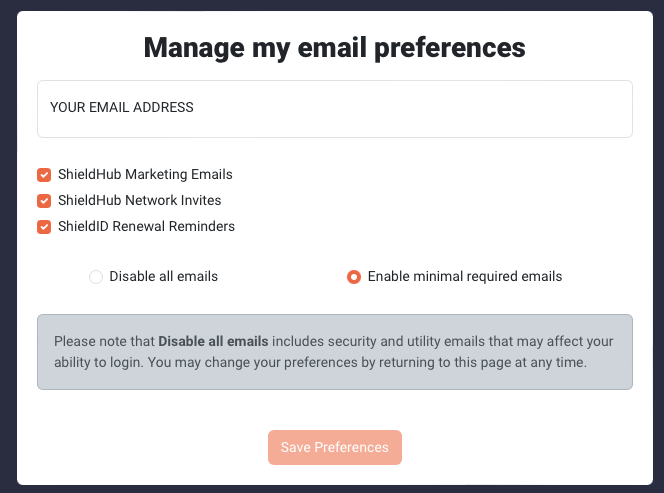
- Enter the email that you wish to manage the preferences for.
Due to security purposes, we cannot reveal the actual preferences for the email you are updating, but once you submit the changes we will update the settings for your email. - Select Which lists you want to be subsxcribe/unsubscribed to
- Click the Save Preferences Button. You will know that the preferences were saved when you receive a green alert box.

Visiting the email Preferences Center from a Received Email
If you are currently receiving emails from ShieldHub, you can also click the "Manage your email preferences" link from the bottom of the email.
- Click the Manage your email preferences link from the footer of a ShieldHub email.

- This will take you to the email Preferences Center.
You will notice that this is different then when you directly to the preferences center. Because you clicked a link, we were able to verify your identity. You should see a partially masked version of your email at the top of the preferences center.
Also, because this is from an email that you had secure access to, we are able to pre-populate with your current preferences.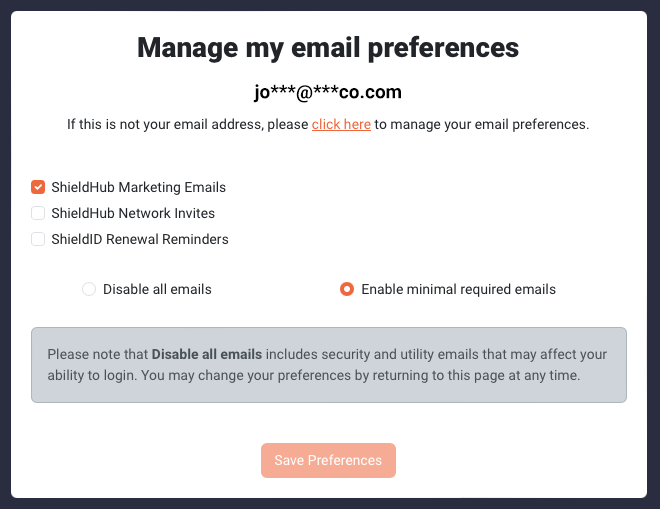
- Select Which lists you want to be subsxcribe/unsubscribed to
- Click the Save Preferences Button. You will know that the preferences were saved when you receive a green alert box.
Managing From Your User Profile
You can also update your email preferences from your user profile at any time.
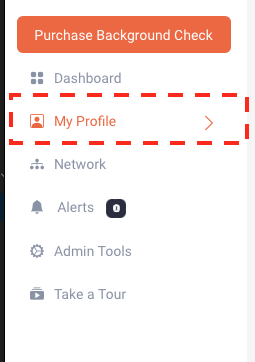
- Simply login to the system and click the My Profile Button on the left sidebar
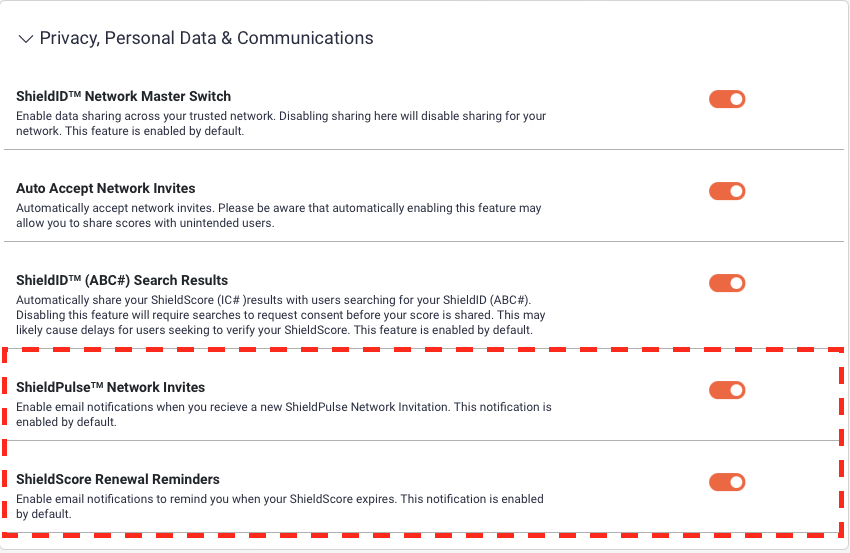
- Navigate to the Privacy, Personal, & Communications Section of the Profile
- Enable or disable the ShieldPulse Network Invite and Renewal Reminder options from the available options.
Was this article helpful?
That’s Great!
Thank you for your feedback
Sorry! We couldn't be helpful
Thank you for your feedback
Feedback sent
We appreciate your effort and will try to fix the article